
 For Owners
 For Sales
 For Production
 For Finance
 Presentations
 Shops
Shops
 Product Mockups
 Client Portals
 Product Search
 CRM
CRM
 Decorator Matrix
 Suppliers
 Navigation & Dashboards
 Production Management
 Reports & Analytics
 commonsku Payments
 Essentials
 Advanced
 Enterprise
 Customer Stories
 Events
 Blog
Blog
 eBooks
 skucast (Podcast)
 Ask skucast
 Webinars
 ROI Calculator
 FAQ
FAQ

SECTIONS
RELATED RESOURCES

Your Next 10 Minutes in commonsku: Task Automation
Three steps, ten minutes, and a to-do list that writes itself.
Every distributor has the same two leaks. A presentation goes out, the client goes quiet, and nobody notices until the client calls someone else. Or a sales order gets built on a Tuesday and never leaves the building, because the rep who built it got pulled onto three other merch projects by Wednesday.
commonsku has a fix for both, and it's already in your account. It's called Automation Engine. You tell it how many days a form can sit in a status before someone should look at it. When that clock runs out, it creates a task and drops it on the right person's dashboard.
95 distributors have turned it on so far. Between them it has created more than 3,000 follow-up tasks, and about half of those are already done. This guide gets you from zero to your first automation in one sitting.
BEFORE YOU START
Automation Engine is available on Advanced and Enterprise plans, and only Admin users can turn it on. If you're on Essentials, you'll see an upgrade screen instead. Everyone on the team can work the tasks it creates, though, so Step 3 is for all of you.
Your Next 10 Minutes in commonsku Automations
If you only have ten minutes before the next fire, spend them here.
Marcella De Ocampo walks through Automations at Fall CSU Live.
Step 1: Turn On One Automation (3 minutes)
Automations lives in the left-hand nav of commonsku. It's admin-only by design, so if you don't see it, find whoever runs your account.
Log in and look down the left side for Automations. Can't find it? Add /automations to the end of your commonsku URL and press Enter. Either way lands you on the same page.
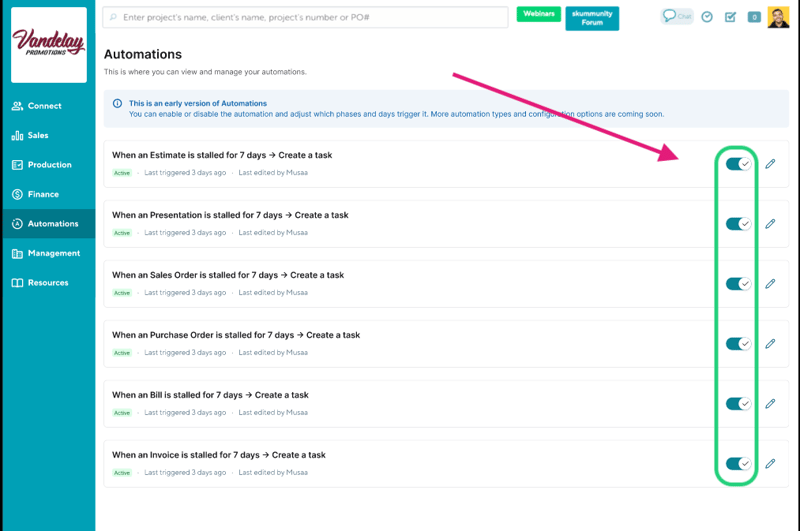
Still nothing? You're probably not an admin, and that's on purpose. Every automation applies to every user in the account the moment it's switched on, so commonsku keeps the controls with the people who own the setup. Grab your admin (or become one) and carry on.
On the page you'll find six built-in automations, one per document type: presentations, estimates, sales orders, purchase orders, invoices and bills. Each has its own on/off toggle. Pick one to start. Marcella De Ocampo from Customer Success put it plainly at CSU Live: "test it out with one form for now. We don't have to go big right away."
Presentations are the obvious first pick, because that's where the silence usually happens.
💡 PRO TIP
The moment you flip a toggle, commonsku checks every existing document in your account, not just new ones. If you've got presentations that have been sitting in Client Review for two weeks, tasks for them will show up right away. Don't be alarmed. That's the backlog you didn't know you had.
Step 2: Set the Days, the Statuses and Who Gets the Task (3 minutes)
Every automation has three settings: how long to wait, which statuses to watch, and who gets the task. You can leave the defaults and it works. Here's what each one does.
Click into the automation you switched on. You'll see three sections. Adjust what you want, then click Save.
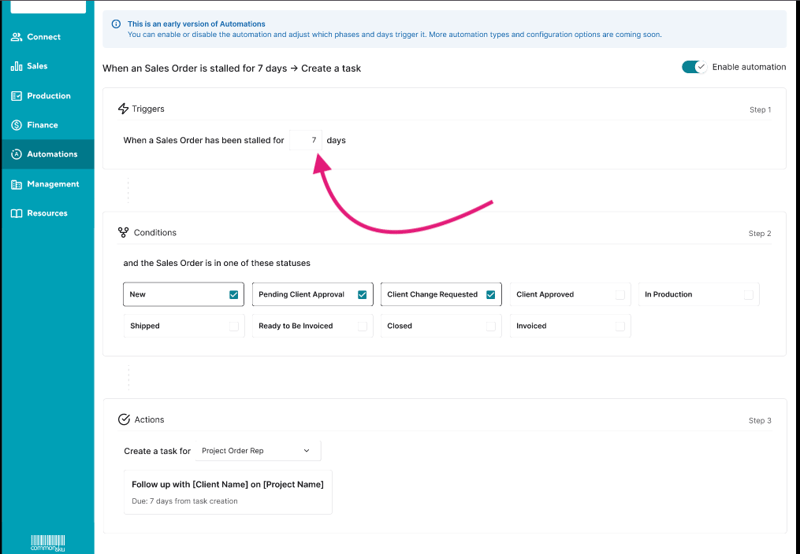
One more thing about the defaults: they're different for each document type. Sales orders and estimates also wait 5 days. Purchase orders and invoices wait 3. Bills wait 7. Start there, then tighten once you see how many tasks come through.
Step 3: Work the Tasks Off Your Dashboard (4 minutes)
Automation tasks land at the bottom of your dashboard, whichever one you use: Sales, Production, Finance or Management.
This step is for everyone on the team, admin or not. Open your dashboard and scroll all the way down. That's where your tasks live. An automation task reads "Follow up with [client name] on [form number]," so you know what it's about before you click.
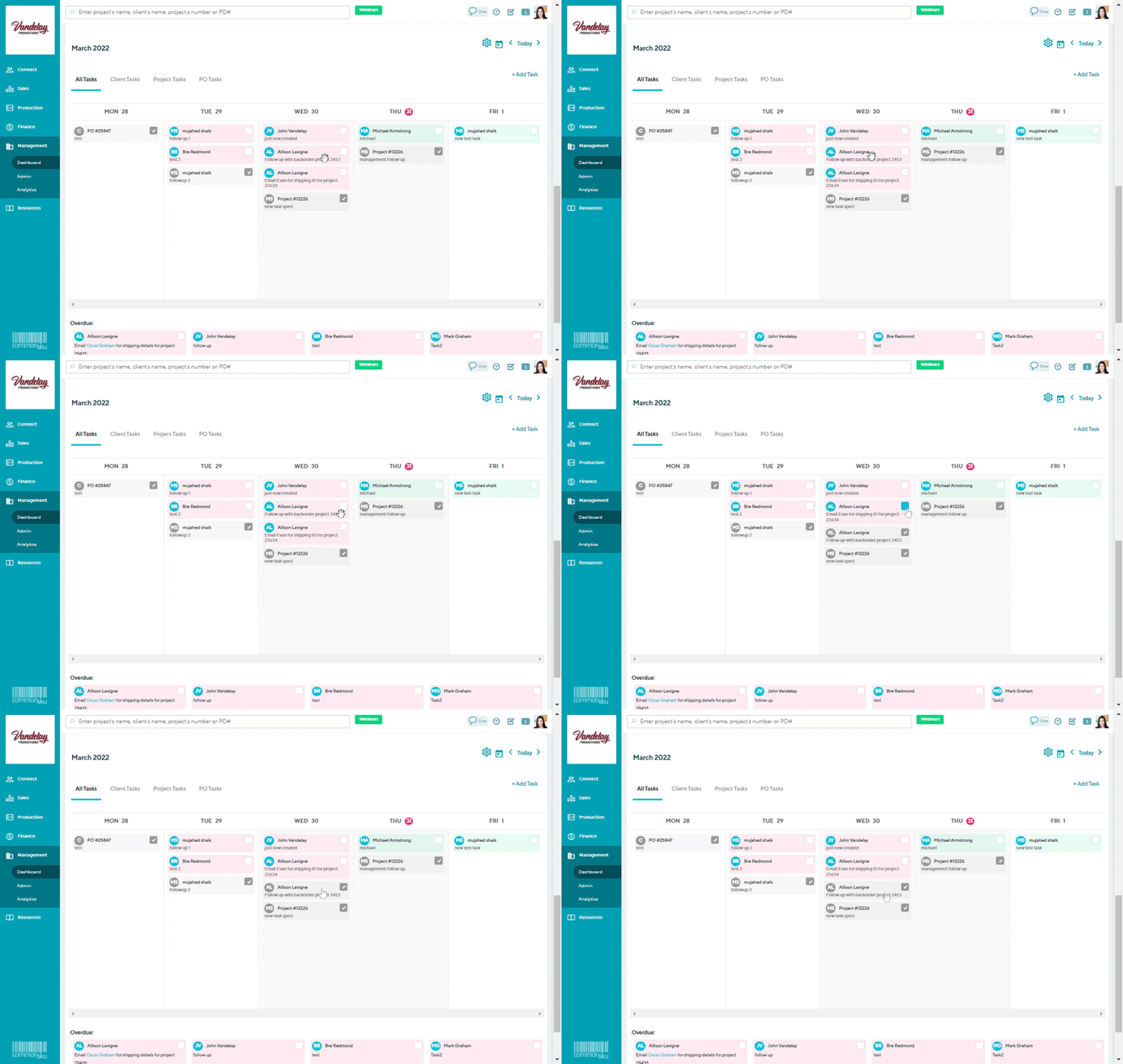
Click a task to open it. From there you can add a comment, tag a teammate, or mark it complete. Completed tasks grey out. Anything showing red or pink is overdue.
Two habits make this stick. First, check your tasks before you open anything else in the morning. Marcella's phrase for it: "check all of your tasks so you can go and complete them before your regular programming." Second, drag tasks around. If today is already full, move it to tomorrow. The point is that it lives on a list where the whole team can see it.
💡 PRO TIP
Automation Engine creates one task per stall, and it won't nag. If the form stays put after the task is created, you won't get a second one. If the status changes and the form later sits too long again, a fresh task appears. So when a task shows up, that's the one reminder you're getting. Act on it.
Dieter Goetzinger, Senior Product Manager on the workflow team, explained why creating a task was the first thing they shipped: it's low risk and easy to undo. Changing a project's status or emailing a client automatically is not. Those come later, once the team has seen the engine run on something recoverable.
What to Do Next
Start with one, then add the second. Turn on presentations in Client Review this week. Once the tasks are showing up and people are clearing them, tick Open as well (the never-sent catch). Then move to sales orders.
Tell the team where to look. The most common reason automation tasks go unworked is that nobody knew the bottom of the dashboard existed. One message in your team channel fixes that. A task-tracking button is also coming to the top bar in commonsku's next navigation update, which will make this easier.
Ask for the automation you wish existed. Today the engine does one thing: days in a status, then a task. The product team is building the next layer, where you pick your own trigger, conditions and action, with an execution log so you can see everything each automation has done and when. Dieter ran a poll at CSU Live to decide what ships first. If you've got a "send a review link when the invoice is paid" or "follow up three months after the last order" idea, drop it in the Got an Idea box under Resources. The more teams ask for the same thing, the sooner it gets built.
Want the whole session? Watch Marcella and Dieter's full Automation session from Fall CSU Live. Questions about your setup? Reach out to your CSM or contact support@commonsku.com.
RELATED RESOURCES