
 For Owners
 For Sales
 For Production
 For Finance
 Presentations
 Shops
Shops
 Product Mockups
 Client Portals
 Product Search
 CRM
CRM
 Decorator Matrix
 Suppliers
 Navigation & Dashboards
 Production Management
 Reports & Analytics
 Essentials
 Advanced
 Enterprise
 Customer Stories
 Events
 Blog
Blog
 eBooks
 Podcast
 Webinars
 ROI Calculator
 FAQ
FAQ
SECTIONS
RELATED RESOURCES

Your Next 10 Minutes in commonsku: Client Portals
A clean presentation is easy. A presentation that makes a client feel something? That's the whole game, and it takes about ten minutes.
You spend twenty minutes building a presentation, with sharp product photos, clean pricing, and your logo up top. It looks professional, so you hit send feeling good about it... and then nothing. Just a polite reply in an already stalled thread. Where's the spark?
Here's the uncomfortable truth: a presentation can be tidy, organized, and completely forgettable. The fix isn't more polish, it's a handful of small, intentional moves inside commonsku that you can start using on your very next promo project. Below is the order to run them in.
Your First 10 Minutes in a commonsku Presentation
If you only have ten minutes before this goes to a client, spend them here.
First, the Mindset: Collecting vs. Curating
Fewer products, chosen well, almost always beat a giant catalog. Everything below is really just a way to curate harder.
Most forgettable presentations come from the same instinct: show the client everything you can offer. More options, more value, right? Not quite.
Collecting is dumping a pile of products onto a presentation and sending it off. It feels generous, but it puts the work on the client to sort through the noise.
Curating is the opposite. You take what you know about the client, their brand, their audience, their vibe, and filter down to a tight selection that signals you understand them, sometimes before they've fully explained themselves. That's the moment a client thinks, "Oh, this person gets it."
Step 1: Pick the Right Presentation Style (2 minutes)
commonsku gives you five built-in presentation styles. Set a default in company settings, then change it per project, because why limit yourself to one?

Knowing all the styles means you always have the right one for the client in front of you. Here's how the most-used ones differ.
💡 PRO TIP
Smart Gallery does more than look good. When a client places an order inside the presentation, commonsku creates the sales order automatically and notifies the rep. All you do is send it over to confirm.
Step 2: Make It Look and Sound Like the Client (4 minutes)
The fastest way to change the temperature of a presentation is to stop leading with your branding and start leading with theirs.
Instead of your company banner up top, drop in the client's logo and a banner that fits their world, either an image they gave you or a stock photo tied to their industry. Open a presentation built this way and you know who the client is right away, without anyone explaining a thing.
Lean into their brand colors. When you add products, you often get the full rainbow of colorways. If your client lives in gray and black, you don't need all twelve options cluttering the page. Trim to what's on-brand for them.
Set it up once in a project template. Head to Settings → Company Settings → Project Templates. Build a template per client or per campaign, whatever matches how you work, then adjust it later in the project Overview. Set it once, reuse it forever.
Now make it sound like them
Looking the part is half of it. The other half is how it reads. By default, product descriptions flow straight in from your database. Sometimes that's great. Often it's a tongue-twister of specs, "soda lime glass, screw lid, soy wax", that makes a client feel exactly nothing.
So rewrite it. Picture a candle going into a nurse appreciation gift. Swap the spec sheet for something like: "You've taken care of everyone else. Now it's your turn." Same candle. Completely different feeling. You can edit any description directly in commonsku, and this one habit can change the whole tone of a presentation.
Step 3: Structure With Titles, Then Add Mockups (4 minutes)
If you take one feature away from this post, make it titles. They turn a product list into a path you walk the client down.
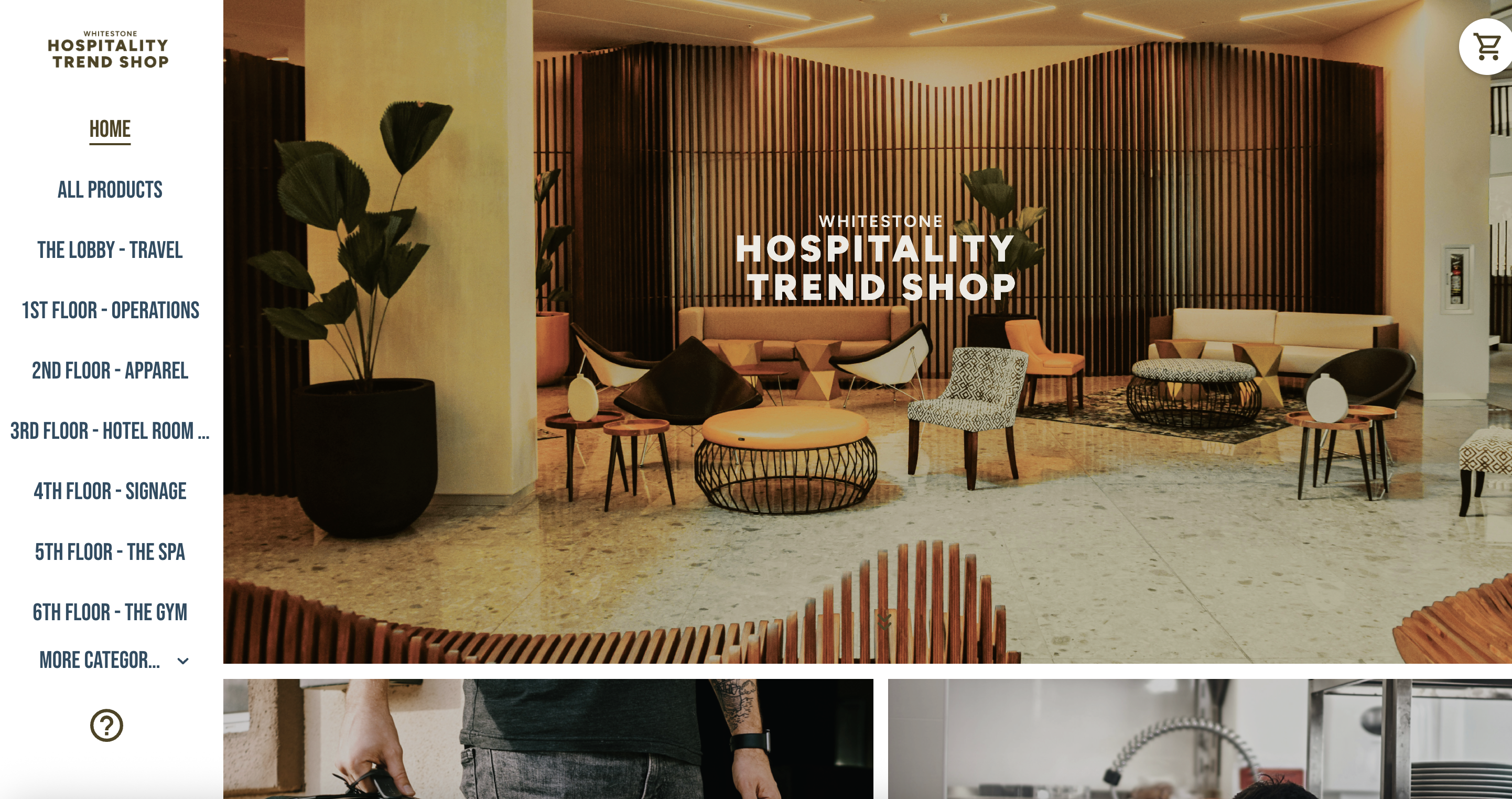 Whitestone Branding turned what could have been a flat client presentation into their Hospitality Trend Shop, using commonsku categories as floor-by-floor navigation. It's the same category-driven curation behind a great presentation, elevated into a fully shoppable Shop.
At the simplest level, titles are categories, apparel, drinkware, hard goods. Drag products underneath, or hover on a title and click to add items straight to it. Clean and scannable. But you can push them much further.
Then show it, don't just say it: mockups
A logo sitting in a presentation is one thing. A logo on the product is another. Mockups move a client from "here are some options" to "here's exactly what mine will look like."
AI Erase. Inside the image editor, AI Erase wipes a supplier's stock logo off a product so you get a clean canvas. Upload the client's logo, then scale, skew, and position it, and save. No need to source a brand-new photo. It won't replace real design work, but to win the client? More than enough.
💡 PRO TIP
AI Mockups (beta) takes this further. For Connected+ suppliers, use AI Edit to mark where decoration goes (embroidery, heat transfer, 3D), add a prompt, and let commonsku generate the mockup, even in batch across multiple products at once. Two things to know: it's in beta, so request access through your customer success manager or support, and it's available on Advanced and Enterprise only.
Built a presentation you love? Use the Actions button to copy the whole thing into a new one for the next client in that industry. Save your custom template once and apply it to every future presentation for that account.
What to Do Next
You don't need to overhaul everything this week, that's the trap that keeps great features sitting unused. Pick one move and ship it.
Rebrand one presentation. Adjust the project template for a single client so it looks like them, logo, banner, colors.
Rewrite three descriptions. Turn three spec sheets into lines that make the client feel something.
Add titles to your next deck. Guide the client with Good/Better/Best or a "Pick Your Player" flow instead of dumping options.
Drop a logo on one product. Use AI Erase to show the client what theirs will actually look like.
Open your next live project in commonsku and try just one before you hit send. Questions about your setup? Reach out to your CSM or contact support@commonsku.com.
Frequently Asked Questions
RELATED RESOURCES