
 For Owners
 For Sales
 For Production
 For Finance
 Presentations
 Shops
Shops
 Product Mockups
 Client Portals
 Product Search
 CRM
CRM
 Decorator Matrix
 Suppliers
 Navigation & Dashboards
 Production Management
 Reports & Analytics
 Essentials
 Advanced
 Enterprise
 Customer Stories
 Events
 Blog
Blog
 eBooks
 Podcast
 On-Demand Webinars
 ROI Calculator
 FAQ
FAQ
SECTIONS
RELATED RESOURCES

Your First 10 Minutes: Reporting in commonsku

Five reports, ten minutes, full visibility into your business performance.
Most distributors we talk to aren't short on data. They're short on time to find it. That's why we built this guide.
commonsku's reporting suite is where those answers live. Whether you're an owner trying to protect margin, a sales manager tracking pipeline, or a rep staying ahead of reorders: there's a report for that.
Your 10-Minute Reporting Checklist
If you only have ten minutes, run them in this order.
Step 1: Start with the Sales Rep Report (3 minutes)
The Sales Rep Report is the most-used report in commonsku. It's the right answer to roughly 60% of reporting questions.
This report runs on two things: form type and creation date.
Want to see all open sales orders right now? Set the form type, clear the order date filter, hit Get Report.
A few things worth knowing:
Export for more fields. The on-screen view only shows so much. Export it and you'll unlock additional columns, including client tags.
Switch rep filter to "All." By default, the report only shows active reps. If someone left the team, their orders won't appear unless you toggle this to include inactive reps too.
Summaries are at the top. Total open value, booked margin, billed margin: it's all rolled up before you even scroll.
💡 PRO TIP
commonsku's Sales Rep Report feeds directly into the Sales Dashboard and management views, giving owners and managers a unified view of what's open, what's booked, and what's been invoiced. No need to pull data from multiple places.
Step 2: Track Activity, Pipeline, and Conversions (4 minutes)
Three reports that show you what your team is creating, what's in play, and what's actually closing.
The Sales Rep Report tells you what's open. These three tell you what's happening with it.
💡 PRO TIP
The Sales Dashboard is the engine behind commonsku's management dashboard, giving owners a rolled-up view of every rep's numbers in one place. No spreadsheet required.
Step 3: Go Deeper with Advanced Reports (3 minutes)
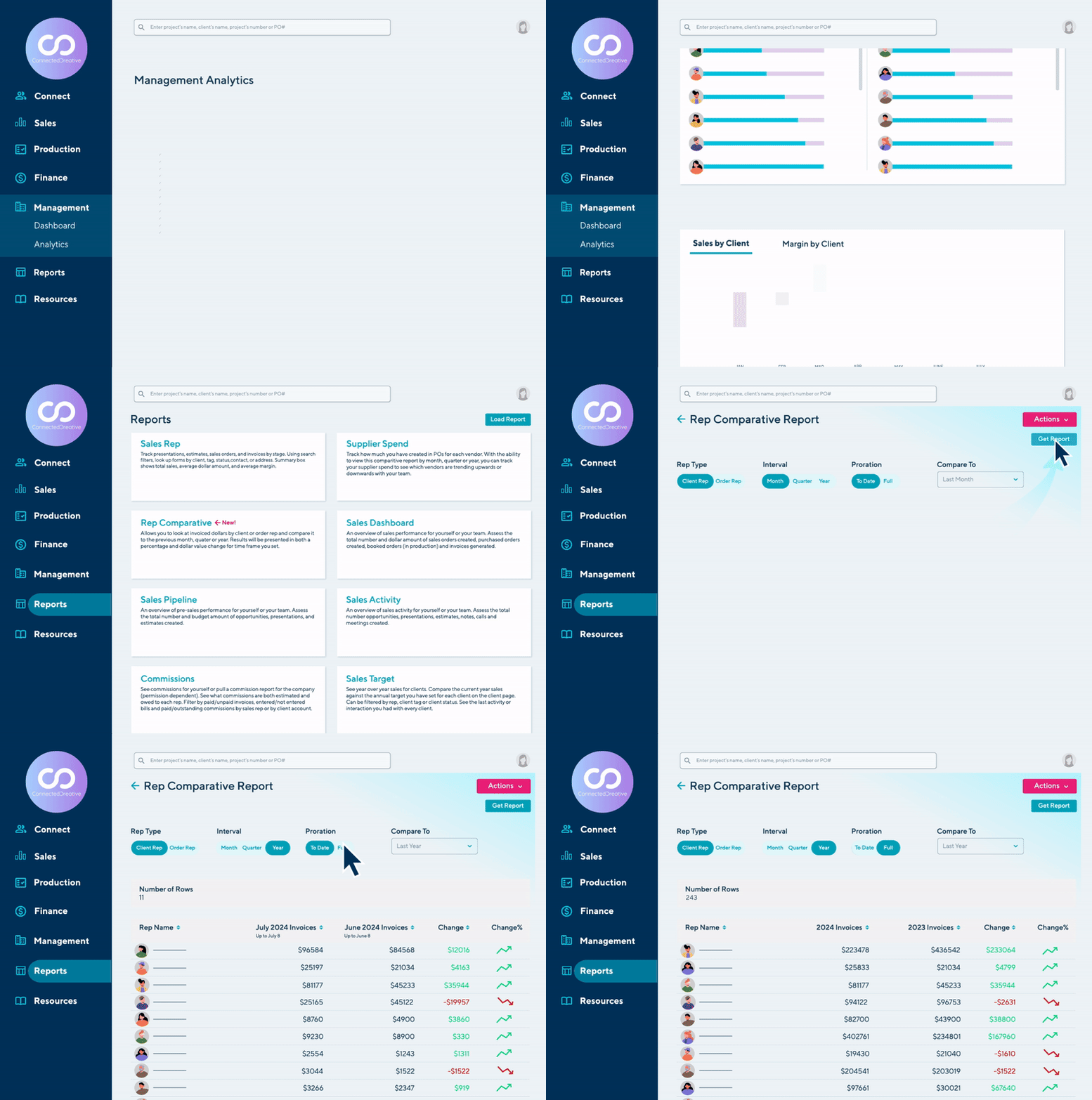
For Advanced and Enterprise users: compare reps, clients, and suppliers across any two time periods.
💡 PRO TIP
Tag your Connected+ suppliers in commonsku and use the Supplier Spend Report to track adoption and spend in one view. It's a direct way to show your team the operational case for using Connected+ suppliers.
One More Report Worth Knowing: Products Sold
Available on Essentials and above. See exactly which products you've sold, who sold them, how often, and at what margin.
One of the most-requested additions to the platform. Use it to:
Identify cross-sell gaps. A client buying a lot of apparel but no hard goods? That's a call worth making.
Review supplier performance by product category. See which suppliers are delivering and which aren't pulling their weight.
See what's actually moving vs. what's just getting quoted. If you're quoting a product ten times and selling it twice, that's worth a closer look.
What to Do Next
Start with the Sales Rep Report. Open it, clear the date filter, and pull all your open orders. Get comfortable with the filters and export before moving on.
Bookmark the Sales Dashboard. Run it for this month and last month side by side. If the numbers surprise you, that's a signal worth investigating.
Explore one Advanced report. If you're on Advanced or Enterprise, open the Rep Comparative or Potential Repeat Order report. Both take under two minutes to run.
Schedule one report. Pick the report you run most often. Save it, schedule it, and stop running it manually.
Have questions about your reporting setup? Reach out to your CSM or contact us at support@commonsku.com.
New to commonsku? See how the platform works.
RELATED RESOURCES